
getting started
Quickstart Guide
A practical introduction to accessing, setting up, navigating, and collaborating in Satisplan.
Getting Started with Satisplan
Quick Start summary in 9 steps
1. Sign In: Log in at app.satisplan.com or use the mobile app.
2. Understand Navigation controls:
- Top left-hand corner: the Drawer
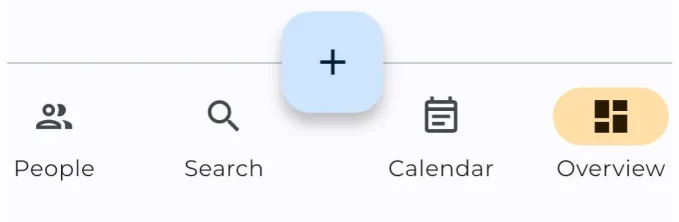
- Bottom navigation bar: People, Search, Calendar, and Overview Screen
**3. Set Your Profile:**Open the Drawer and tap the avatar to upload your photo.
**4. Create Teams:**Go to the People Screen to create Teams (Admins create Users).
5. Understand Goals vs Tasks:
- Goals = many different types of “jobs to be done”, e.g. strategic objectives, project portfolios, single projects, or deliverables. Can be collaborative.
- Tasks = specific time blocks during which a person works at a particular Goal (or no Goal). Tasks are personal and cannot be owned by a Team.
**6. Create Goals:**Go to the Overview Screen or People Screen from the bottom navigation bar. Click ’+’ or the ‘3-dot menu’ to create Goals. You can:
- Create top level Goals (Parents) and / or nested sub-Goals (Children)
- Edit all Goal details such as Deadline or Description
- Assign them to other Users or Teams - if you create a Goal from the ‘People Screen’, it is assigned to the User / Team automatically
- Add Collaborators for team visibility
**7. Add Tasks:**Use the big ’+’ button on the bottom navigation bar or tap anywhere in the Calendar Screen to create personal work blocks. You can:
- Edit all Task details such as Deadline, or Description
- Assign them to other Users (but not Teams - Tasks are personal)
- Link them to Goals for team visibility
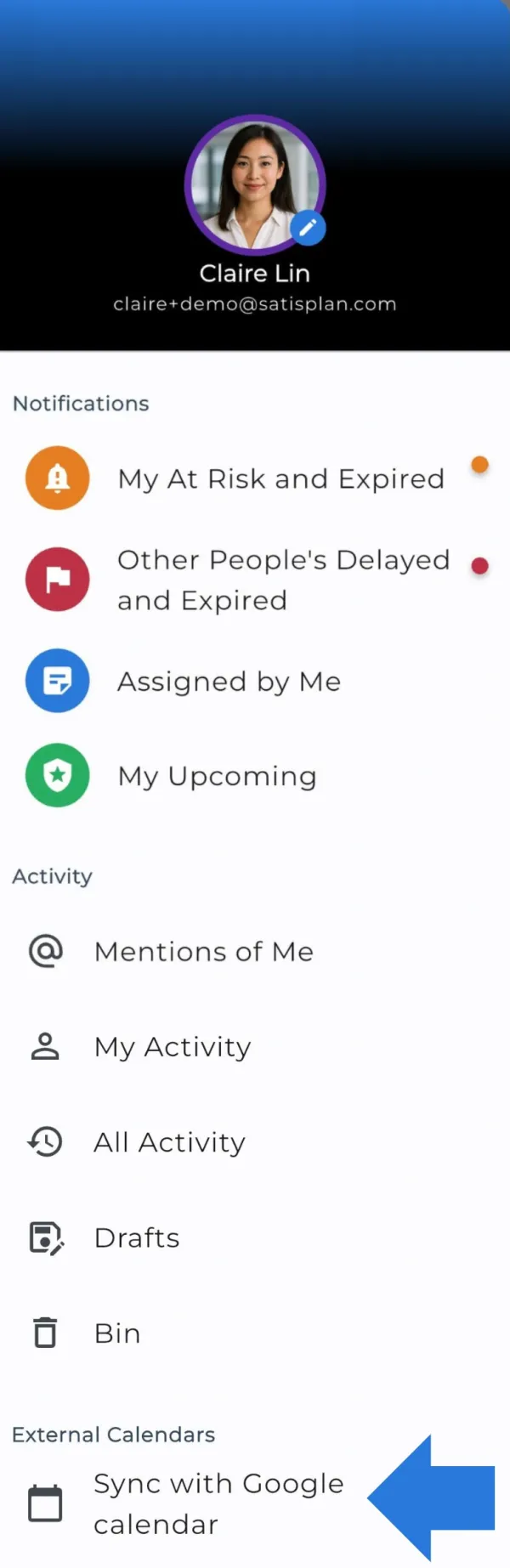
8. Sync Google Calendar: In the Drawer, select “Sync with Google Calendar” to view external events alongside Satisplan tasks.
- Use the Calendar Screen to tell you what you should work on right now
- Use the Overview Screen to filter Goals / Tasks and check their “States” (e.g. At Risk, Delayed, Done)
- Communicate via Comments within individual Goals and Tasks
- Get Notifications when your attention is needed (red dot in Drawer icon)
Accessing your Satisplan account
Sign In Screen
Please visit app.satisplan.com or open the app and follow the Sign In instructions*
- If you have not received an invite to create an account, please contact your company’s Admin
Navigating your Satisplan account
The Bottom Navigation Bar
- People: in the People Screen you can create, edit, and view Users and Teams
- Search: keyword Search that lets you find your desired Goals and Tasks more quickly
- Calendar: in the Calendar Screen you can view, plan and manage your Tasks
- Overview: in the Overview Screen you can view and filter Goals and Tasks belonging to you and to your Teams; it lets you quickly see how things are going and spot where you should focus your attention next
The Drawer
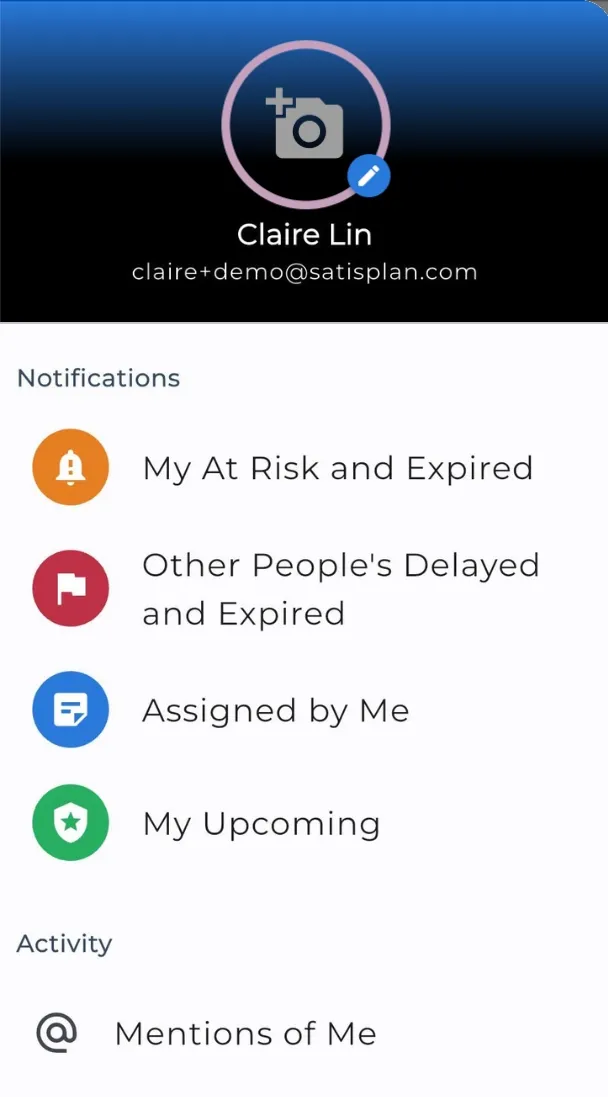
Tap the icon on the top left hand corner to reveal the Drawer and be able to:
- View / modify your Avatar
- View your Notifications
- View Activity - which includes:
- Mentions of you
- Your Activity
- All Activity from your colleagues etc
- Your Drafts
- The Bin
- Sync your Google Calendar(s)
- Get Help from Satisplan’s Customer Support
Setting up your Satisplan account
Say cheese! - add your photo
- Open the Drawer by tapping the icon on the top left corner
- Tap the circle Avatar to add / change your photo
- Let your colleagues see your face! 🙂

Create Users and Teams (optional)
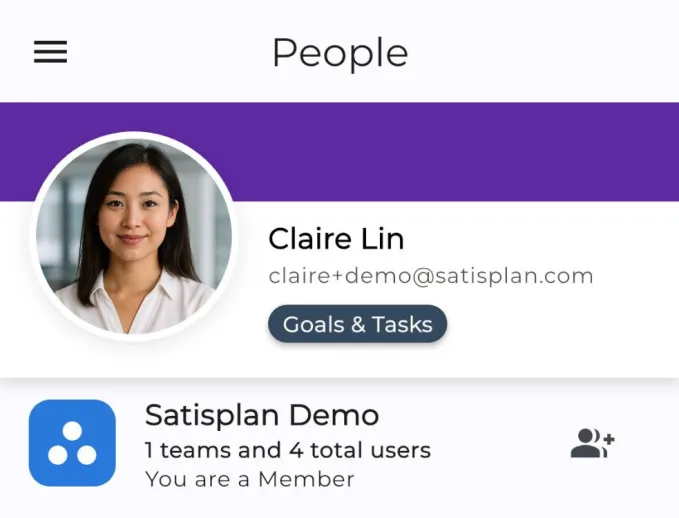
- In the Bottom Navigation Bar, tap “People”
- Here you can:
- Create new Users (Admin only)
- Create new Teams
- You can also view existing Users and Teams and create Goals or Tasks for them
Create Goals
There are many types of “jobs to be done”. They could be strategic company objectives, portfolios of projects, single projects, sub-projects, or milestones and deliverables. In Satisplan, all of these are called “Goals” and can be nested infinitely, to give you unparalleled flexibility. Goals can be personal or collaborative.
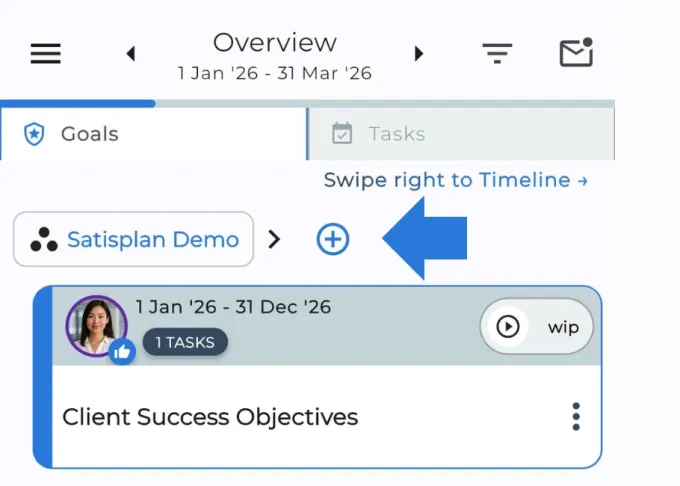
Creating Parent Goals
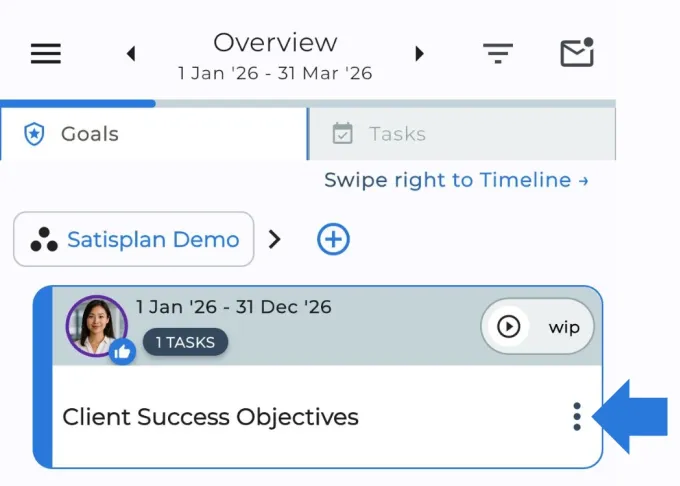
Option 1 - In the Overview, tap the Goal Panel. Next to the Space Name you will find a “+” button. Tap it to enter the name of a new Goal, then press “Ok”. You can now view or edit the Parent Goal details.
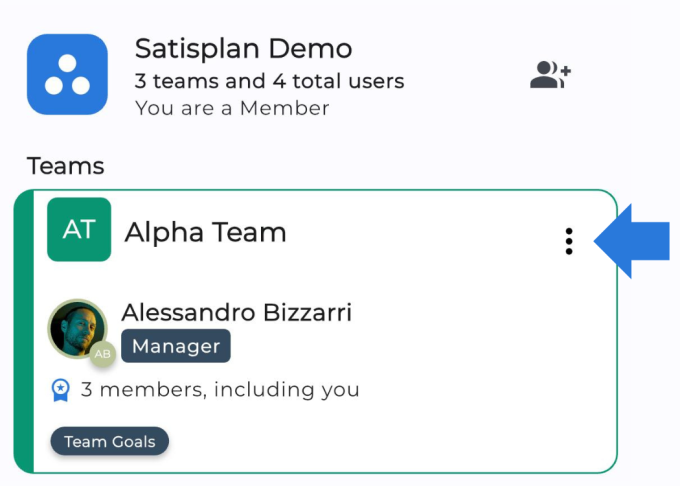
Option 2 - In the People Screen, within a User or Team card, tap the ‘3-dot menu > Add Goal to User’ or ‘3-dot menu > Add Goal to Team’. Enter the name of a new Goal, then press “Ok”. You can now view or edit the Parent Goal details.
Creating Children Goals
Within a Goal’s card, tap the ‘3-dot menu > Add new sub-Goal’. Enter the name of a new Goal, then press “Ok”. The new Goal will be nested underneath the Goal tile you tapped. The Child will inherit some details from its Parent. You can now view or edit the Child Goal details.
Viewing or Editing Goal Details
If you tap on a Goal tile, depending on permissions, you can view or edit these details:
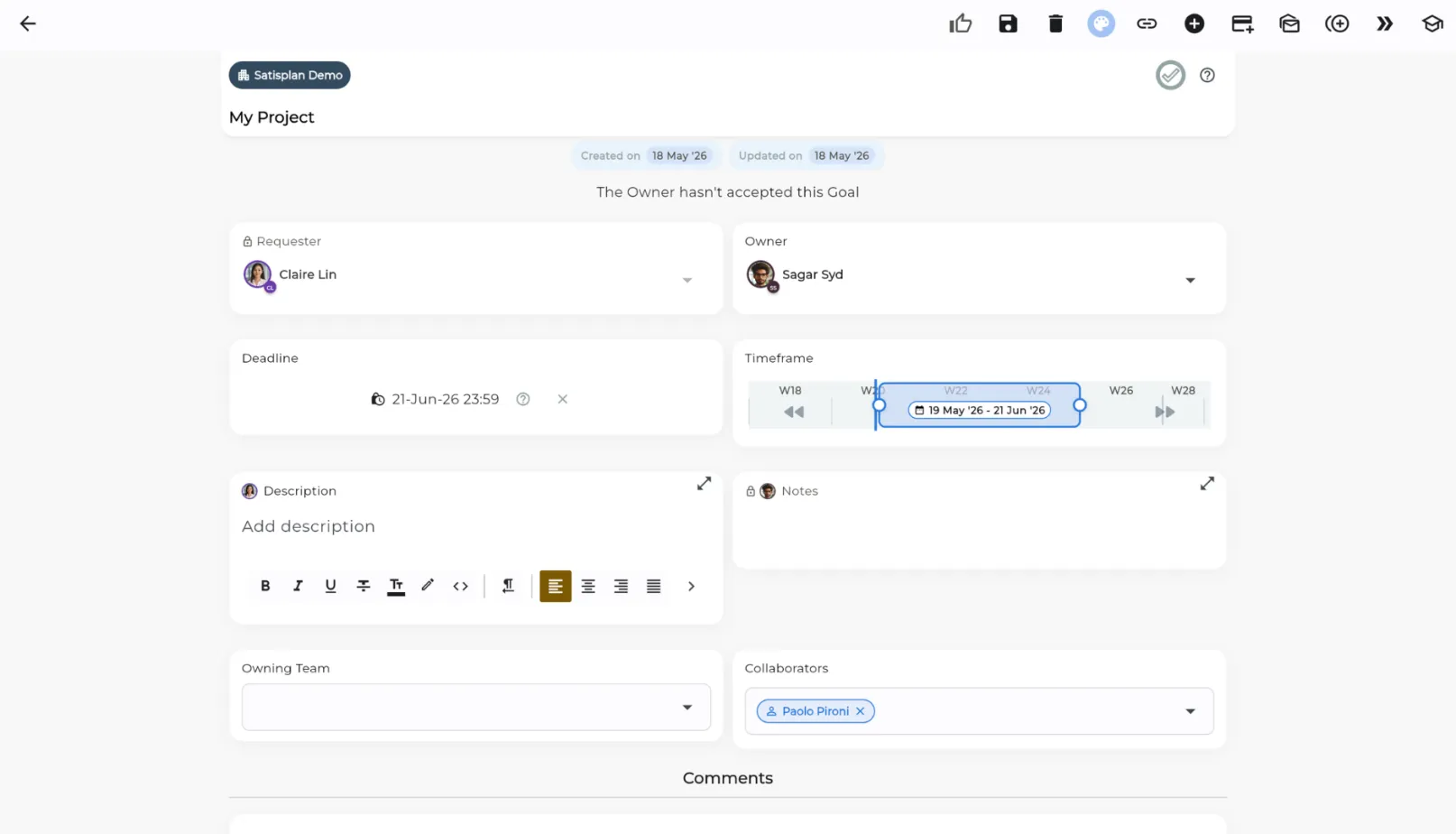
- Colour
- Goal Name, Description, and Notes
- **Requester:**the person who created the Goal - cannot be edited
- Owner: the person responsible for the Goal - edit this to assign a Goal to someone other than yourself (see Collaboration section)
- Owning Team: if you do not know the correct person but you know the correct Team, use this field to assign a Goal to them (their manager will receive a ping)
- Collaborators: the people who can view the Goal and the Tasks linked to it. Users or Teams can be added here. They should be added on a need-to-know basis
- Deadline: when the Goal must be completed
- **Timeframe:**the expected Start and End date - which may not coincide with the Deadline
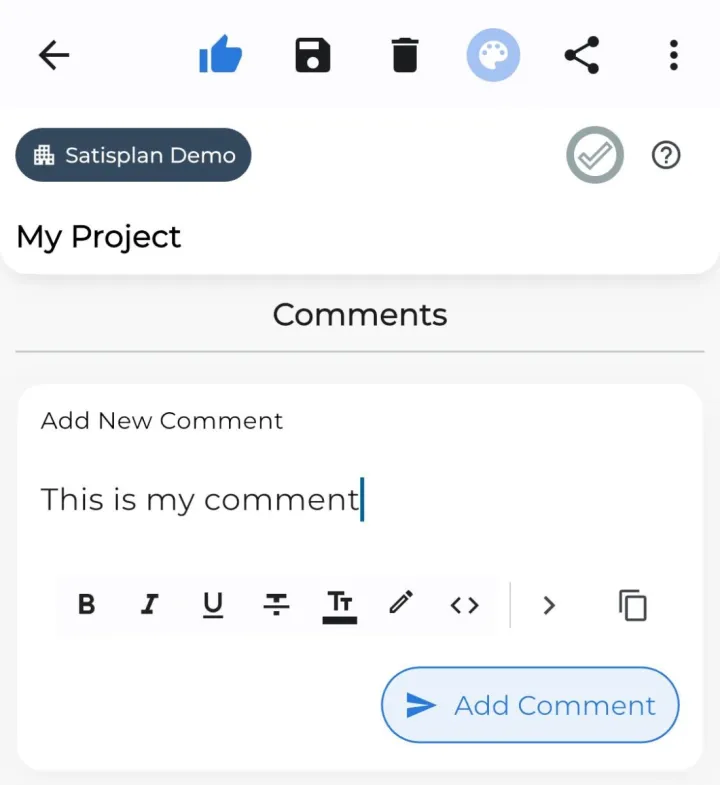
- Add Comments
If you have permission, you will see a “delete” icon. Unless you want to immediately delete a Goal you created by mistake, we advise not to delete old Goals, as this might disrupt historic performance reporting. Instead, end the Goal by setting an End date. Note that you cannot delete Goals that have Children (even if you cannot currently see their Children due to your filter settings, or due to your lack of permissions to see their Children).
Create Tasks
Tasks are the specific time blocks during which a person works at a particular Goal (or no Goal). Unlike Goals, Tasks are personal (to you or to someone else) and cannot be owned by a Team. They can be viewed and commented on by Collaborators of relevant Goals, but they cannot have sub-Tasks to which multiple people contribute.
Creating Tasks & Assigning Them to Goals
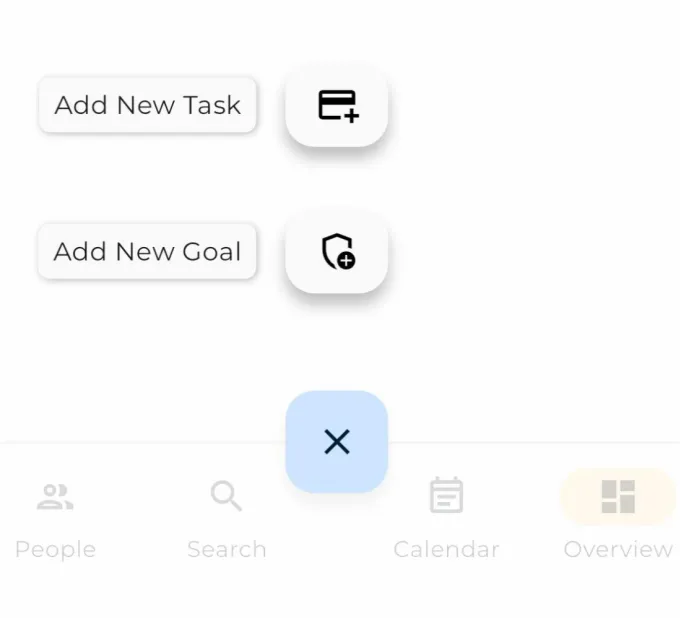
You can create a new Task by:
- Tapping the big “+” button in the Bottom Navigation Bar
- Tapping anywhere in the Calendar Screen
- In the Overview Screen, in a Goal tile, tapping the ‘3-dot menu > Add new Task’ (if you want to create a Task for that Goal)
- In the People Screen, in a User Tile, tapping the ‘3-dot menu > Add Task to User’ (if you want to create a Task with that person as the Owner)
Following any of these steps will open the Task Details Screen, which looks like this:
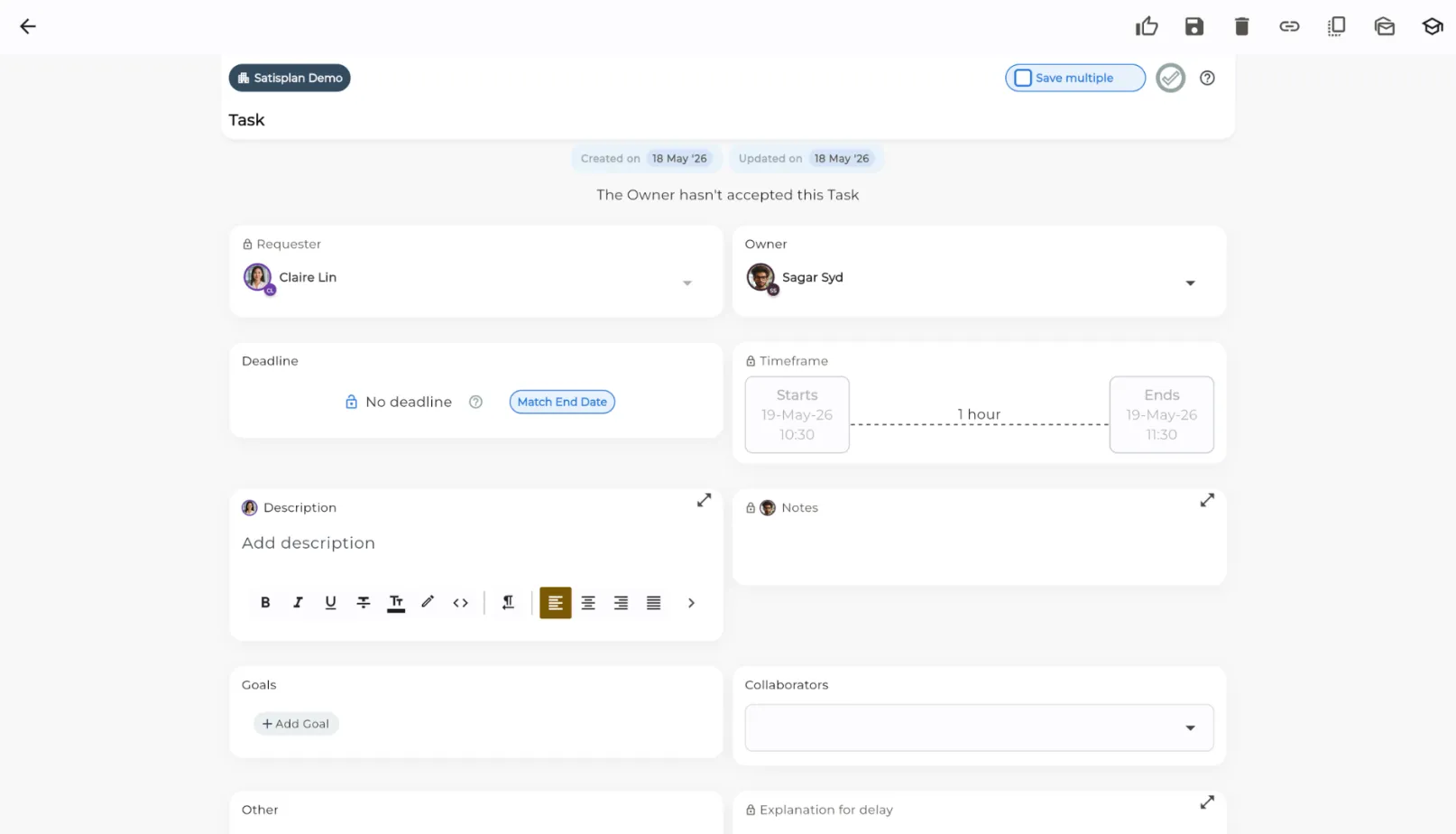
- To create a new Task quickly, type in a Title and hit Enter
- Optionally, you also can:
- **Change the Task Owner:**must always be a person (use Goals if you want to assign a Team)
- **Pick one or more Goals:**this Task will be viewable by the Requester, Owner, Owning Team, and Collaborators for the selected Goal(s)
- Edit Title, Description, and Notes
- Change Timeframe, add a Deadline, or make the Task recurrent
- All options are described in detail in the “Task attributes” section of at www.satisplan.com/knowledge-base
PRO TIP: if you want to quickly assign multiple consecutive Tasks to a Goal, and perhaps to the same Owner, simply tick the box labelled “Save multiple”
Sync your external Google Calendar
Satisplan allows you to sync your Google Calendar, so that you can:
- See all of your tasks and events in one place
- Leverage Satisplan’s functionality to never forget a Task
- Leverage Satisplan’s functionality to manage Task Deadlines, assigning Tasks to others, monitoring the State of your Tasks and your team’s Tasks, and much more
How to sync your Google Calendar with Satisplan
If you are syncing your Google Calendar with Satisplan for the first time, or if no Google Calendars are currently synced with your Satisplan account, you can follow this process:
- Open the Drawer
- Tap “Sync with Google Calendar”
- This will initiate your operating system’s workflow to sync a Google Account with another app. Please follow the workflow, and if you have any questions feel free to contact our Customer Success Team at support@satisplan.com
- This workflow will ask you to choose one Google Account that you want to sync, and then one Google Calendar that is visible through that Google Account. Please choose the first Calendar you want to sync. You will be able to sync additional Calendars later following the same workflow, if you so wish
NOTE THAT only 1 Google Account can be synced with Satisplan at any one time, but there is no limit to how many Google Calendar(s) from that account can be synced.
Working and Collaborating with Satisplan
Permissions to edit Goals and Tasks
To promote Accountability and make collaboration smoother, only certain users can edit certain attributes of a Goal or Task:
- Only the Requester can modify certain fields like Description and Deadline - this ensures nobody forgets what was agreed in principle
- Only the Owner can accept / reject, or modify certain fields like Notes or Explanation for Delay - this ensures the Owner can carry out the work independently, while the Requester and Goal Collaborators can view updates
- Goal Collaborators cannot make edits, but they can add Comments and tag other colleagues (as can the Requester and Owner)
Calendar Screen
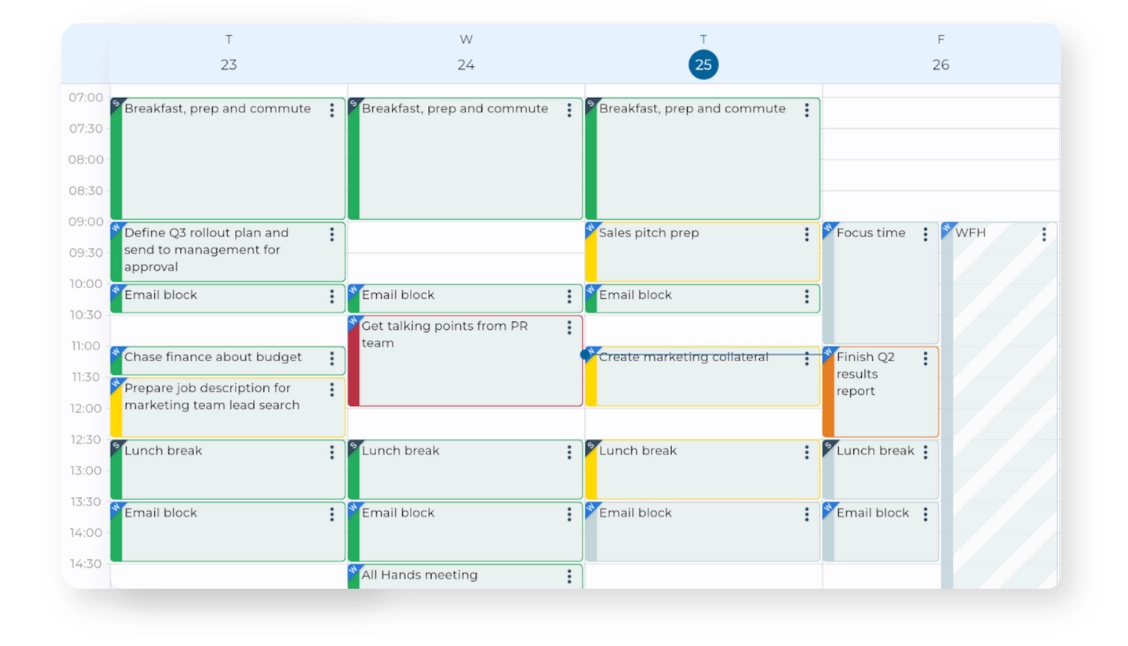
- In the Calendar Screen, you can view which Tasks you have decided to work on when; you can also reschedule and modify your Tasks
- This is a Calendar where you can see and manage both your Work and Personal Tasks together; your Personal Tasks will only be visible to you and nobody else
- If you are syncing an external calendar such as your Google Calendar, you will also see its tasks and events here (see Syncing your external Google Calendar)
- You can find a detailed description of the Calendar Screen and its functionality at www.satisplan.com/knowledge-base
Overview Screen
The Overview Screen is your control centre for collaborating with others. It lets you:
- View all Goals and Tasks where you are involved
- Quickly identify areas that require attention
- Apply default or personalised Filters to surface the information you want
It consists of 2 panels:
- Goals: view your desired Goals as an ordered, hierarchical list - as well as in a timeline
- **Tasks:**view your desired Tasks as an ordered list
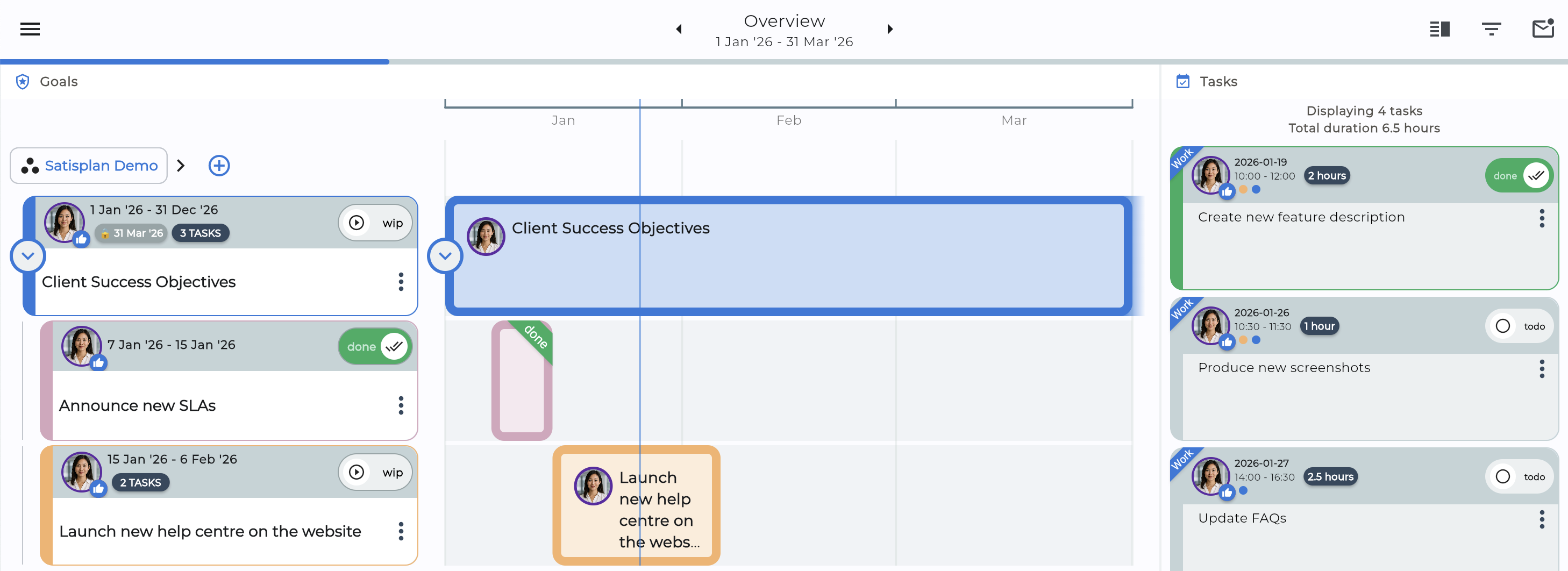
The Goals and Tasks you see depend on permissions. An Admin can see all Goals and Tasks in a shared Work Space. However, Admins cannot see your Personal Space.
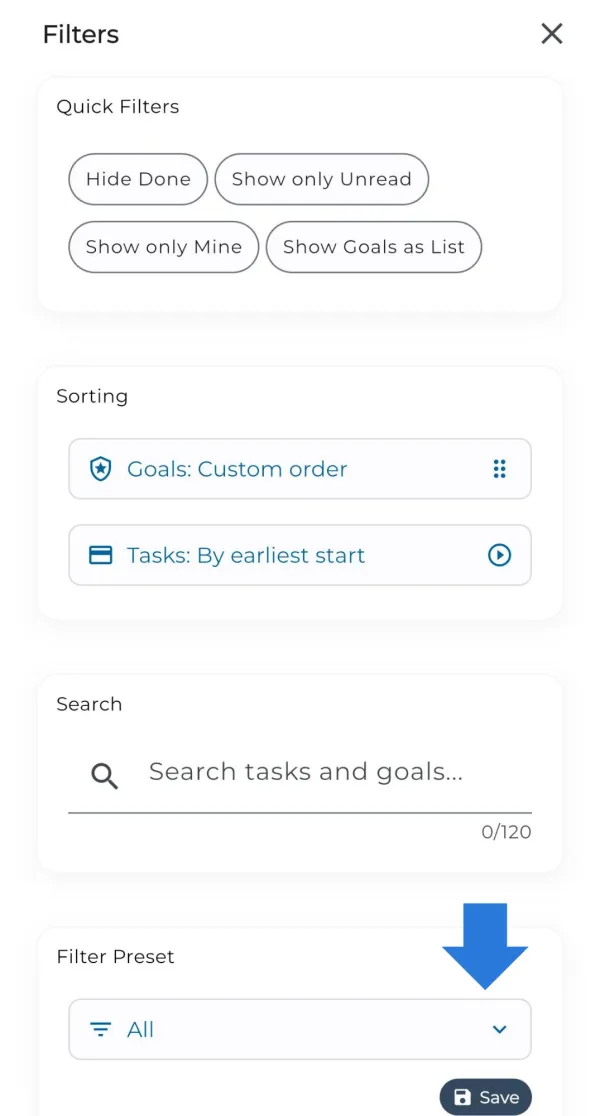
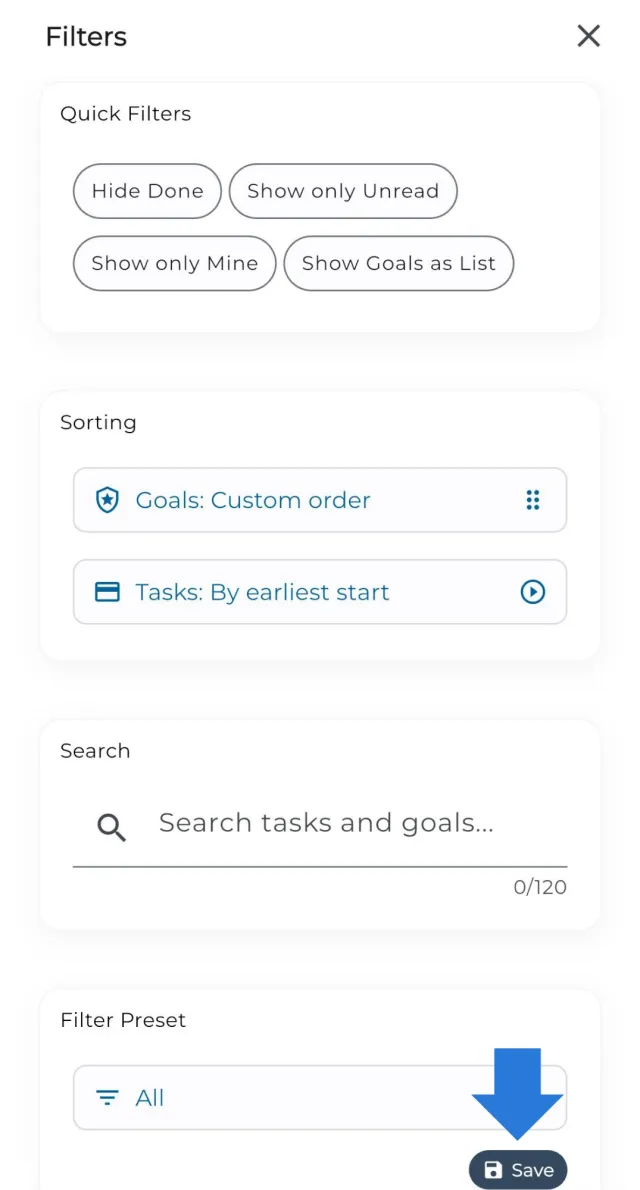
The icon in the top right hand corner reveals the Filter panel, which lets you decide which Goals and Tasks to visualise. For ease, you may apply Default Filters to see the most common reports. When you are ready, you can unleash the full power of Filters by creating and saving Custom ones.
View which Goals and Tasks were accepted by the Owner
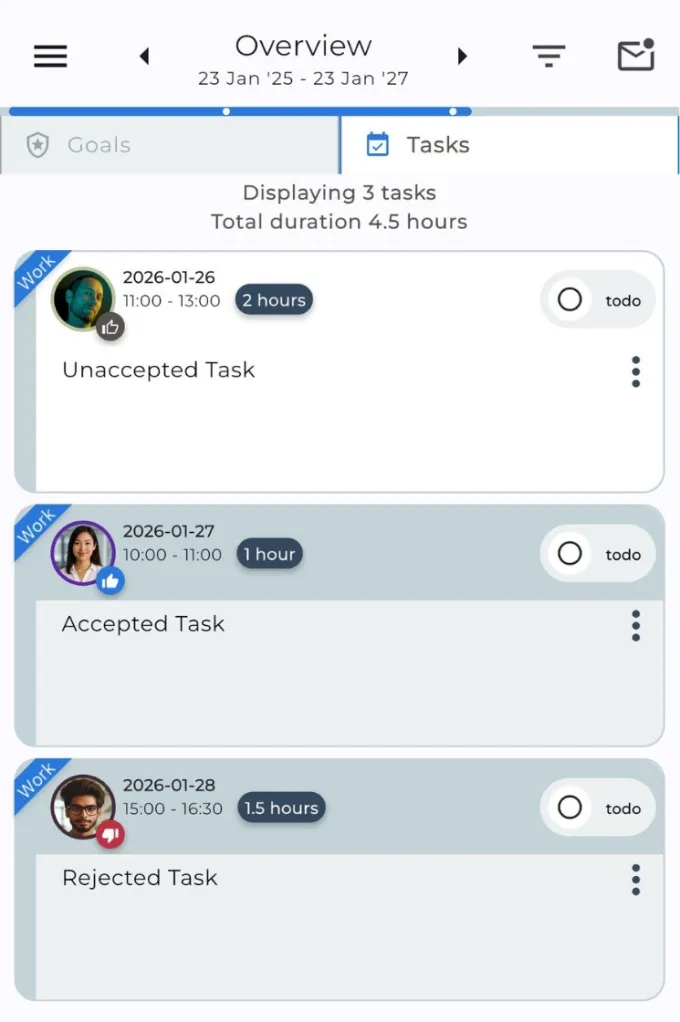
The tile of each Goal and Task shows you whether its Owner:
- Is yet to accept it (grey thumbs up icon - white background);
- Has accepted it (blue thumbs up icon - grey background); or
- Has rejected it (red thumbs down icon - grey background)
You always have the option to ask clarifying questions to the Owner via Comments.
View the State of each Goal and Task
The tile of each Goal and Task shows you its State - for example if it is going smoothly, or if it is expected to be delivered late. The States are automatically determined based on several factors. You can read more here.
Default Filters and Notifications
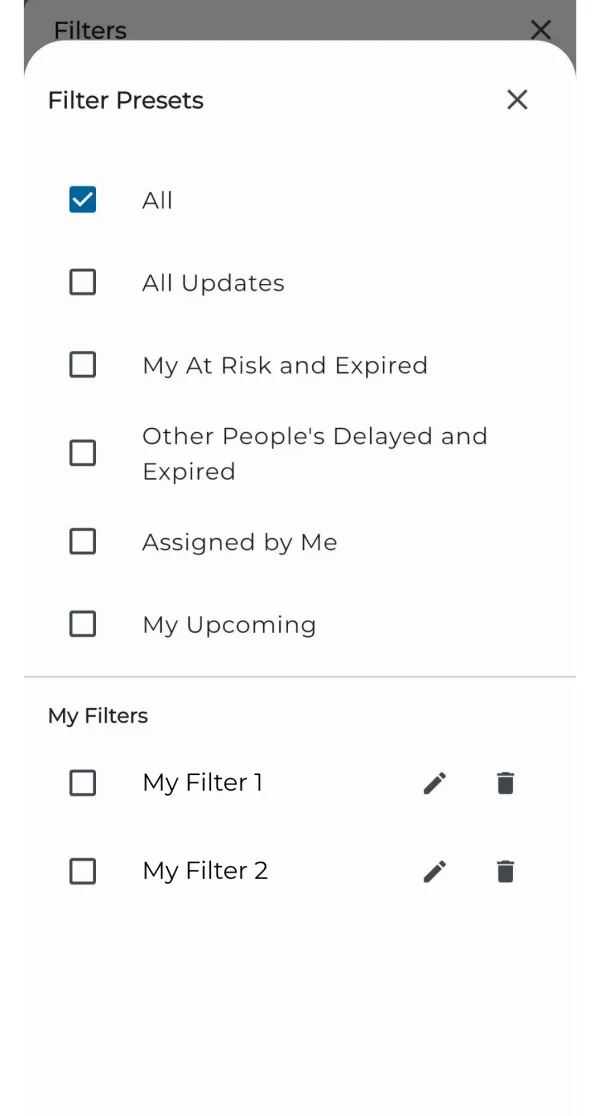
The most common reports are pre-coded into your Satisplan account. They include:
- **All Updates:**a collection of Goals and Tasks you are involved in and which have been updated by someone else - they may include mentions of you
- **My At Risk and Expired:**your Goals and Tasks that were left behind
- **Other People’s Delayed and Expired:**Goals and Tasks that matter to you and that have issues
- **Assigned by Me:**Goals and Tasks you assigned to somebody
- **My Upcoming:**your Goals and Tasks - what you should work on next
There are 2 ways to access these Default Filters:
- In the Overview Screen, from the Filter panel
- In the Drawer, right under your Avatar
In the Drawer, you will get notified whenever there is an Unread update to a Goal or Task corresponding to one of these Default Filters. This means you do not need to check frequently: Satisplan will let you know when something needs your attention.
Comments and Notifications
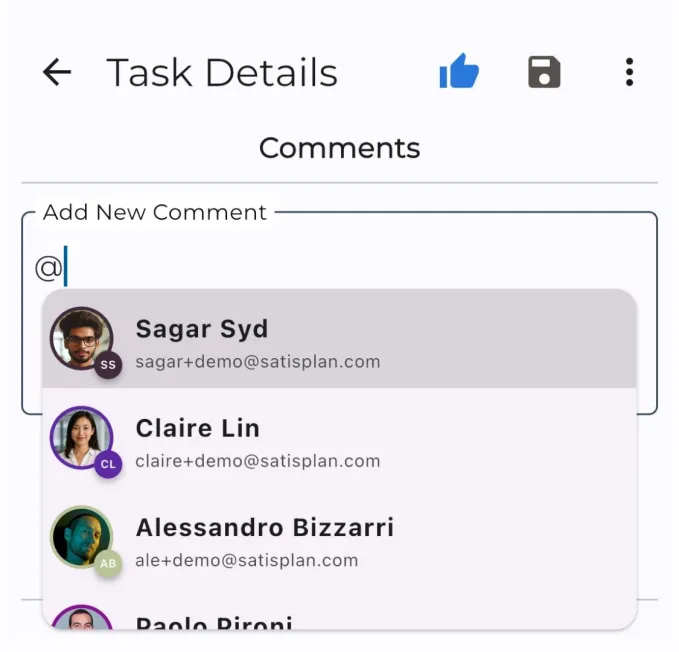
Users can add Comments to any Goal or Task. Thanks to this:
- You can have very specific conversations
- Users who do not have permission to edit a Goal or Task can still contribute
If you want to ping a specific colleague, you can use ‘@’ and then type his/her name. The colleague will receive a Notification, which s/he will find in ‘Drawer > All Updates’.
Custom Filters
In Overview, the Filters panel allows you to create fully custom reports. A few notable signals you can filter by:
- **Time range:**only see Goals and Tasks within a certain time period
- **Keyword search:**only see Goals and Tasks that contain certain words
- Owner / Requester / Goal Collaborators
- Owning Team
- Goal or Task State
- Etc.
Additionally, you can save your own Filters to access your preferred custom reports at any time.
You can find a detailed description of all available Filters at www.satisplan.com/knowledge-base
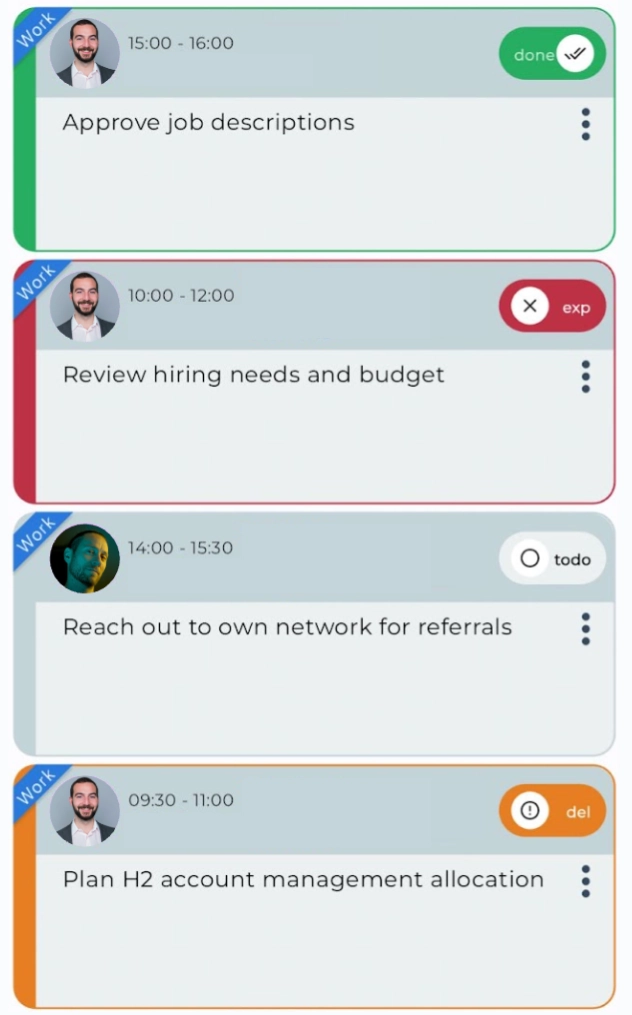
Goal and Task States quickly explained
Every Goal and every Task has a State, which is automatically determined based on the conditions described below. By marking the Goal or Task as done or not done (toggling the Done pill), you will also affect this State.
- Done: [dark green] completed before its Deadline (if any)
- Done Late: [light green] completed after its Deadline
- At Risk: [yellow] not yet completed, Deadline has not passed, but the Owner planned to do it in the past. Satisplan flags it, so it is not forgotten (with normal calendars, tasks risk being forgotten)
- Delayed: [orange] not yet completed, expected to finish after its Deadline
- For Goals - sub-Goals or Tasks are scheduled after the Goal’s Deadline
- For Tasks - the Owner plans to do the Task after its Deadline; the Owner has provided an Explanation for Delay
- Expired: [red] not yet completed, Deadline has passed
- In Progress, To Do: [grey] not yet completed, expected to finish before its Deadline (if any)
You can click on a Tile’s State circle, or on the ”?” button in a Goal Details Screen or a Task Details Screen, and see:
- An explanation as to why the specific State is attributed to the Goal or Task in question
- A description of all Goal and Task States (just tap on each of the different State icons)
The “Reasons for Delay” and “Explanation for Delay”
The “Reasons for Delay” and “Explanation for Delay” are Satisplan automations that ensure that:
- Nobody postpones a Task after its Deadline accidentally (it happens…);
- Others are informed immediately about an expected Delay, so they can react
The “Reasons for Delay” apply to Goals - they are an automatically generated list of Tasks which are responsible for holding the Goal up.
The “Explanation for Delay” applies to Tasks - the software mandates it for Owners that willingly postpone a Task after its Deadline; postponing Tasks is sometimes inevitable, and colleagues should know the reasons, in order to be able to react accordingly.
Get Help - Knowledge Base & Customer Support
If you need us, we are happy to help! Please do this:
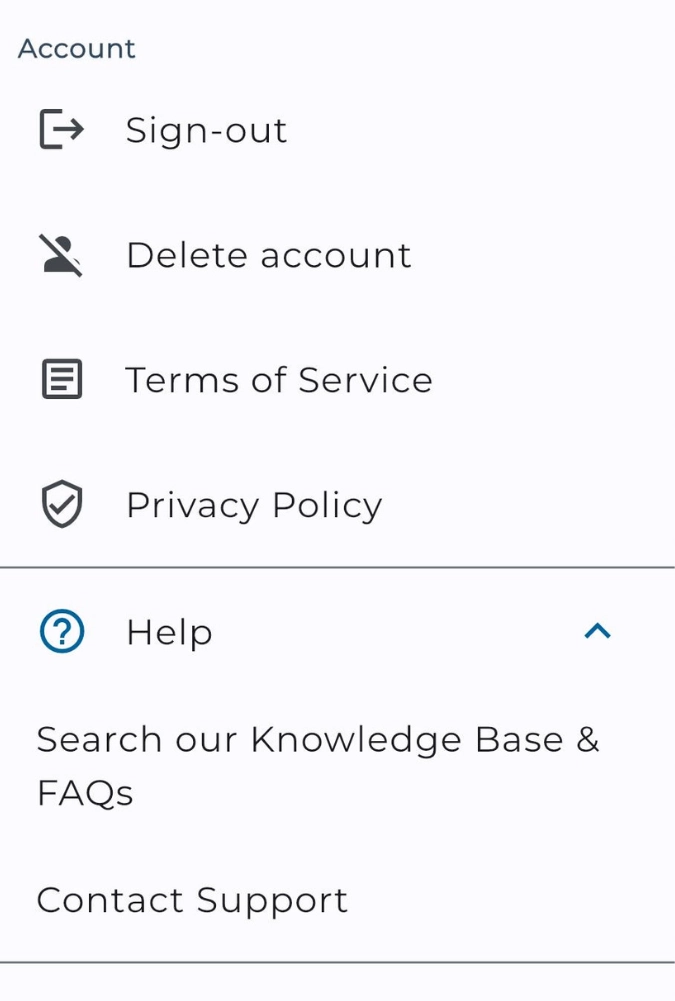
- Open the Drawer
- Scroll down and tap ‘Help’
- Choose one of the 2 options:
- Search our Knowledge Base & FAQs: if you want to find the answers yourself
- Contact Support: if you want us to help you directly
- We will respond to Urgent requests within 4 working hours and to non-Urgent requests within 1 working day (working hours mean UK business hours)
Frequently asked questions (FAQ)
Can I recover my lost username?
Yes. Your username is your work email address. If you have multiple work email addresses and do not remember which one was used to create your Satisplan account, please ask your company Admin to confirm that for you, or email us on support@satisplan.com
Can I recover my lost password?
Yes. If you are signed out and cannot remember your password, go to the login page by either opening the app on your mobile device, or by visiting app.satisplan.com on a web browser. Tap “Forgot password?” at the bottom, then enter your work email address and press “Reset password”. If an account exists for the entered email address, you will receive an email with instructions on how to reset your password.
Why can’t I make a Task’s duration less than 30 minutes?
In Satisplan, the minimum duration of a Task is 30 minutes. This is because it is a planning best practice to not allocate less time than this to a Tasks. This helps you take into account both a Task’s execution time and overhead time due to context switching, preparation, unplanned interruptions, etc. There is no limit to how many Tasks you can schedule for the same time - but we only recommend doing it in order to group a lot of similar, quickfire tasks (such as making many short phone calls or answering many short messages or emails).
I have completed a Task on time, but it shows as “Done Late” - can I fix this?
If you mark the Task as Done after the deadline has passed, but indeed you completed the Task before the deadline, you can open the Task and tap the date next to “This task was done late on…”. After you edit this with the correct date and time when you completed the Task, the Task state will change to “Done”.
I want to change the Deadline of my Goal or Task but I cannot, why?
To promote Accountability and make teamwork smoother, only certain users can edit certain attributes of a Goal or Task, depending on the users’ roles with regards to the Goal or Task itself.
Only the Requester can modify certain fields like Description and Deadline - this ensures nobody forgets what was agreed in principle.
So if you are the Owner (the person responsible for doing the Goal or Task), but not its Requester (the person who created it), you cannot edit the Deadline.
Please note that as the Owner you are allowed to:
- Extend a Goal as far as you want into the future
- Reschedule a Task as far as you want into the future, and even past its Deadline - however, you will have to provide an “Explanation for Delay” in order to do that. In this way, the Requester and all relevant Collaborators can quickly see why the Task was delayed, without having to call you or chase you.
For more details on which user can edit which attributes, see www.satisplan.com/knowledge-base.
How do I add a colleague who does not have a Satisplan account?
Please note that only a company Admin can add new colleagues to Satisplan, by providing invites to join Satisplan. If you are your company’s Admin, you can follow this process:
- Log into your Satisplan account
- Tap on the People icon in the Bottom Navigation Bar
- Next to the name of your company’s Space, tap the icon to invite a new User (right next to the icon to create a new Team)
- You will be prompted to enter the email addresses of all of the colleagues you would like to invite to create an account on Satisplan. Please separate the emails using commas
- After sending the invite(s), you will see the list of invited users who have not yet accepted (pending)
- If an invite is pending, you can delete it by tapping on the trashcan icon next to that invite
In my web browser, app.satisplan.com shows the wrong time, how can I fix this? (Mac only)
- Make sure that Location Services are turned on:
- Choose Apple menu > System Settings, click Privacy & Security in the sidebar
- Click Location Services
- Make sure Location Services are enabled
- Next to System Services, click “Details…”
- Toggle on “Time zone and system customization”
- Make sure you enabled your Mac to set date and time automatically:
- Choose Apple menu > System Settings, click General in the sidebar, then click Date & Time on the right. (You may need to scroll down.)
- Ensure “Set time and date automatically” is enabled
- Ensure “Set time zone automatically using your current location” is enabled
- Quit your browser
- Re-open your browser
- Re-open app.satisplan.com
UPDATED DATE: 18 May 2026
Next article
Submit a request and we’ll help!
Your Name *
Your Email Address *
Description *
Attachment (optional) — Max file size (Mb): 2Max number of files: 1
I agree to the Terms and Conditions *
Submit your request